Guide · Getting started
LM Studio, start to finish
Updated 23 July 2026 · about 15 minutes to a working setup
LM Studio is the easiest way to run a language model on your own computer, and the part most guides skip is the bit that decides whether it feels fast or unusable. Two settings do almost all the work. Get those right and a mid-range graphics card will answer quicker than you can read; get them wrong and people conclude their hardware is not up to it when it is.
What it is, and who it suits
It's a desktop app that downloads language models and gives you a chat window to talk to them. That's the whole idea. No terminal, no Python environment, no dependency hell - which is why it has become the way most people take their first step into running models locally.
Underneath it is llama.cpp, the same engine a lot of the command-line tools use. What LM Studio adds is a model browser, sensible defaults and a settings panel you can see. If you would rather type commands, Ollama does a similar job from a terminal and the two are worth comparing directly.
Everything runs on your machine. Once a model is downloaded you can pull the network cable out and carry on working, which is the real reason a lot of people are here - the model cannot leak what it never sends.
Will it run on your machine?
Almost certainly yes. Whether it runs well is a different question, and the honest answer is that it depends on one number: how much memory your graphics card has.
A model has to sit in memory to be read quickly. If it fits on the graphics card, you get tokens faster than you can read them. If it does not fit, the work spills onto the processor and system RAM, and the speed does not degrade gently - it falls off a cliff. Dual-channel DDR5 moves roughly 96GB/s; a 4090 moves around 1,000GB/s.
So: 8GB of VRAM is the point where this gets good. Below that, or with no dedicated card at all, it still works and is worth trying, but expect a few tokens per second rather than a few dozen.
Apple Silicon is the exception worth knowing. Because memory is shared between processor and graphics, an M-series Mac with 32GB or more can load models that would need a very expensive card on a PC, though bandwidth still caps how fast they answer.
Install, and your first model
Download it from lmstudio.ai - Windows, macOS and Linux builds, no account required. Install it the way you would install anything else.
Then, in order:
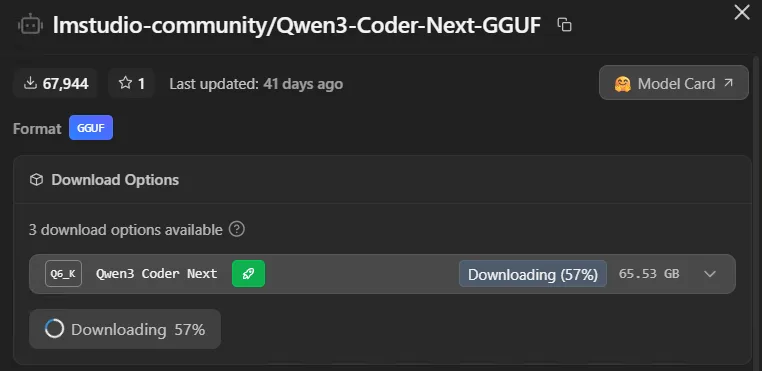
- Open the Discover tab (the magnifying glass) and search for a model. If you want a safe first pick, start with an 8B: Llama 3.2 8B Instruct or Qwen3 8B. Both fit almost anywhere and are good enough to be worth talking to.
- You'll see several download options with names like Q4_K_M, Q5_K_M, Q8_0. These are quantisations - the same model compressed to different degrees. Take Q4_K_M. It is roughly half the size of the full-precision weights with a quality difference most people cannot pick out in normal use.
- Download it. An 8B at Q4 is around 5GB, so give it a few minutes.
- Go to the Chat tab, select the model at the top, and it loads.
That's the working setup. If it answers quickly, you're done and can skip to the model table. If it's crawling, the next section is why.
The two settings that actually matter
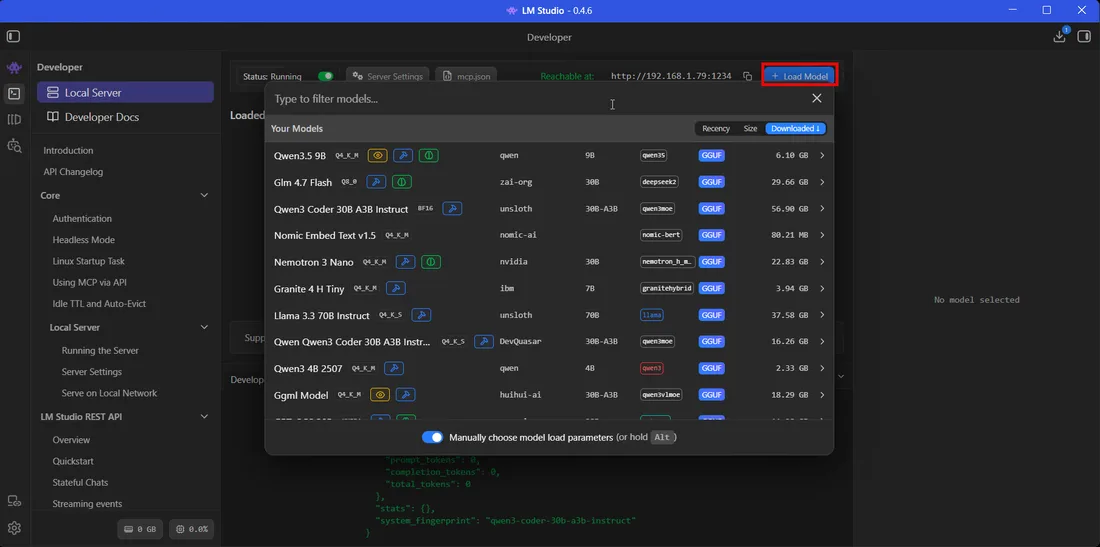
When you load a model, LM Studio shows a panel of options. Almost all of them can be left alone. Two cannot.
GPU offload. This decides how many of the model's layers run on the graphics card rather than the processor. It is the single biggest lever in the application. If it is set low, or the app has been cautious, you are running a fast model on slow hardware and wondering why it is slow. Push it to maximum. If the model loads and runs, you are done. If it fails to load or the machine starts swapping, the model is too big for your card and you want a smaller one or a heavier quantisation.
Context length. How much conversation the model can hold in mind at once. Bigger sounds better, and it is not free: context lives in the same memory the model needs, and it grows fast. A model that fits comfortably at 4,000 tokens of context may not load at all at 32,000. Raise it when you actually need to paste in a long document, and leave it modest otherwise.
There is a third worth turning on if you see it: flash attention, which reduces the memory that context consumes. It costs nothing on modern cards.
Everything else - temperature, top-p, the sampling settings - changes the character of the writing rather than the speed. Leave them alone until you have a reason.
What to run, by graphics card
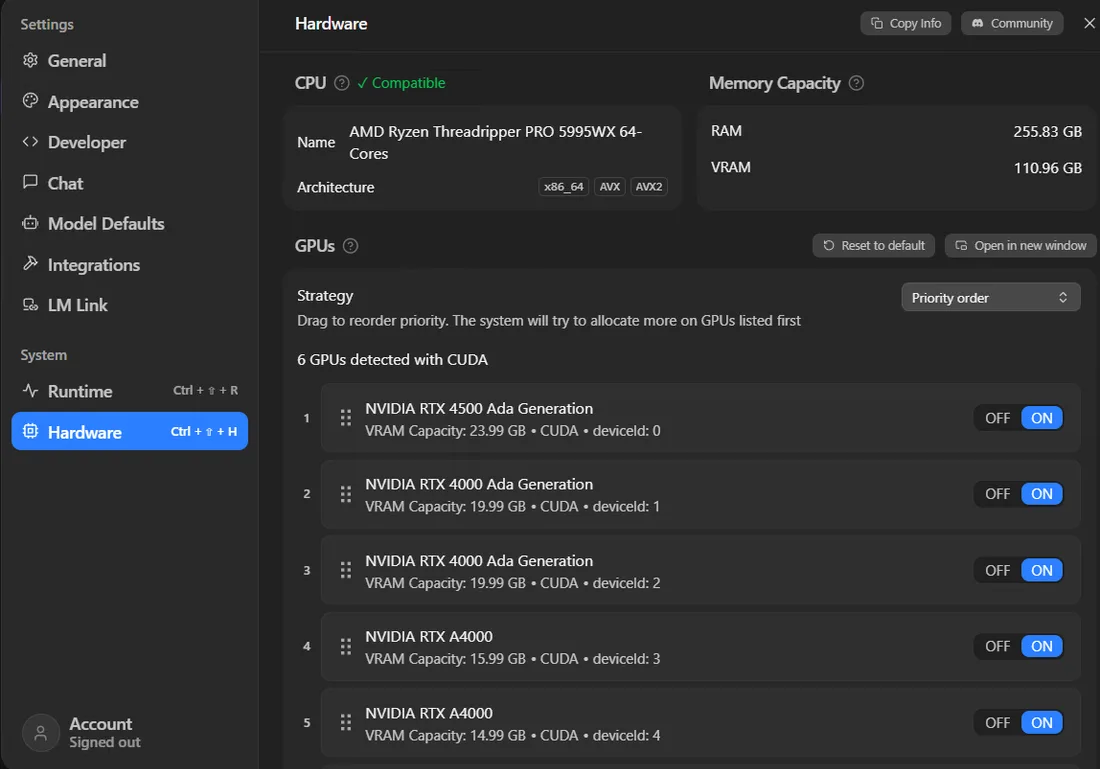
The rough sum: a model at Q4 needs about half its parameter count in GB, plus 2-4GB of headroom for context. An 8B wants around 6GB, a 32B around 18GB, a 70B around 40GB.
| VRAM | Typical cards | Comfortable models | Note |
|---|---|---|---|
| 8GB | RTX 3060 Ti, 4060, laptop cards | Llama 3.2 8B, Qwen3 8B, Gemma 4 9B | Everything useful starts here. Fine for chat and summarising. |
| 12GB | RTX 3060 12GB, 5070 | Up to 14B comfortably, 20B at a push | The sweet spot for the money. A 14B feels noticeably sharper than an 8B. |
| 16GB | RTX 4060 Ti 16GB, 5070 Ti | 20B to 24B, or an 8B with a huge context | Room to hold a long conversation or a whole file in context. |
| 24GB | RTX 3090, 4090, 5090 (32GB) | 32B comfortably, MoE models far larger | On our own bench a 35B mixture-of-experts returns 133 tokens/sec here. |
| 48GB+ | Dual cards, RTX 6000 Ada, PRO 6000 | 70B dense, or 80B+ mixture-of-experts | Our 80B run across two cards manages 118 tokens/sec. |
Speeds quoted are measured on our own bench. See the full results for the exact configurations.
One finding from our own testing worth carrying into your model choice: architecture beats size. A mixture-of-experts model holds a lot of parameters but only wakes a fraction of them per token, so a 35B MoE ran at 133 tokens per second on a single card while a dense 27B managed 61. If a model's name contains something like A3B, that is what it means, and it will punch above its size.
When it goes wrong
Four things account for nearly everything:
- It's slow, and the fans are quiet. The model is on your processor. Check GPU offload and push it up. Quiet fans on a supposedly hard job is the tell.
- It won't load, or crashes on load. Too big. Drop to a smaller model, a heavier quantisation, or reduce context length - in that order.
- It was fine, now it's slow. The conversation has grown and context is eating memory. Start a fresh chat.
- The answers are strange or repetitive. Usually too heavy a quantisation on too small a model. A 3B at Q2 is a false economy; go up a size or a quant level.
If you are on Windows with an AMD card, check it is using the right backend - Vulkan often outruns the alternatives on AMD hardware, and the default is not always the fast one.
When to move on from it
LM Studio is not a stepping stone you are supposed to outgrow. Plenty of people use it permanently and there is nothing wrong with that.
You'd move when you want something it does not do: serving several people at once, running headless on a machine with no screen, or squeezing out maximum throughput. That is where vLLM comes in, which is what we run on our own bench - and it is a considerably steeper learning curve for a gain most single users will not notice.
The middle ground is llama.cpp directly, which is the engine LM Studio is already using. Same speed, more control, no window.
If you got here and found your card is the limit, the GPU comparison ranks what each one can actually hold, and the VRAM calculator works out whether a specific model will fit before you download 40GB of it.